The alluring new models of all the latest cars that hits the roads has always been a major source of attraction. The new and the innovative designs that features in all these road vehicles compels each and every to dream of such a masterpiece to showcase one's own garage. The main person behind the the development of all the latest and appealing designs in various automobiles is that of the Automotive Designer. He is primarily responsible for developing the visual appearance of any automobile vehicle and also take care of the ergonomics and the aesthetics of the vehicle. They are primary categorized into three wings or departments which are the interior design, exterior design and the color design. Interior Automotive Design deals with the inner portion of the vehicle and various other aspects like the shape and positioning of different panels inside the vehicle which are mapped to enhance the comfort and usability of the targeted users. The Exterior Automotive Design is one of the another important area where an automotive designer needs to focus. It deals with the style factor and other aspects like the shape and the visual presentation of the surface of a vehicle which are done using various 3D software and virtual models. Lastly, in the Automotive Color Designs more emphasis is put on different color patterns to suit the interior as well as exterior designs. An automotive designer also need to be very familiar of the usage and various aspects of handling the proposed model and therefore they work closely with the the automobile engineers dealing with the core functionality.Course Description and Eligibility criteria for Automobile Designing courseTo be well acquainted with all the variegating patterns and techniques involved in the designing process of an automobile, one has to go for a regulardegree or a diploma course in Automotive Designing that are available through various Automobile Designing Schools, Colleges and Institutes in India and abroad. They are shown the ropes to use the various designing tools and computerized mapping procedures in analyzing and processing the various designs and structure of any road vehicle. The students are extensively trained to make use of 3D models and vector mapping to determine and develop the sketches of the working model. They are bestowed with detailed and in-depth knowledge in product design management, structures, safety and impact, computer aided engineering and also on modern automotive systems. This course are available both for under graduate and post graduate candidates and can be done as a degree or a diploma depending on various Institutes where such courses are offered. These courses are available as follows:- For Under Graduate candidates seeking admission in Automotive Designing or Automobile Designing
For Post Graduate candidates seeking admission in Automotive Designing or Automobile Designing
Scopes and Job Opportunities in Automotive DesigningOver the years, India has registered a very rapid growth and rising trend in automobile manufacturing industry thereby making it one of the best destination for automobile designing in the world. The recent report of the Society of Indian Automobile Manufacturer suggests that India has sold more than 1 million cars last year with a growth rate of more than 12% per annum. So, with all these achievements in the automobile industry, a qualified candidate can easily grab a very good job opportunity which is usually accompanied with an attractive remuneration package. A very famous and well known automotive designer who has made India proud with all his latest innovation is Dilip Chhabria. He has proved his might in delivering the best design for modern cars and futuristic automobile design thus winning the hearts of many with his sparkling models all of which carries the codename "DC Design'. Apart from the automobile manufacturing industry, an automotive designer can also seek employment in multimedia movie production and ad development team for designing various sports and hi-tech car models used in most of the movies today. All in all, a career in automobile designing is a very promising career option for any aspiring candidate which offers the best prospect in terms of job position and opportunities. Some Institutes/Colleges/Universities offering courses in Automobile Designing
| ||
Sunday, 28 April 2013
Career in Automobile Designing in India and abroad

CREO
The very popular software called Pro-E has changed it name to CREO .
Creo, now part of Eastman Kodak Company, was a Burnaby, British Columbia, Canada-based company involved in imaging and software technology for computer to plate and digital printing.The name derives from the Latin creo, "I create."

Creo, now part of Eastman Kodak Company, was a Burnaby, British Columbia, Canada-based company involved in imaging and software technology for computer to plate and digital printing.The name derives from the Latin creo, "I create."
Tuesday, 25 September 2012
autocad tips : keep practising
 Practice makes perfect. You will get better with a lot of practice. AutoCAD master are they who use it intensively. I think no body will disagree with this. Try to actually drawing a project. Don’t just drawing lines with no meaning.
If you don’t have a project yet, find a sample then draw it. You will find problem when you actually use it.
Become an AutoCAD master is not only about knowing everything in AutoCAD. You need to use the right tool for your workflow. If there are anything else you want to add, please do. You can write in comment and I will add them here. You will be credited.
autocad tips : design collaboration
 You will work with the others for sure. You might be have to work with your partners in your company. It’s a waste of time if they have to wait until you finish, close your file, then they continue your drawings. Or worse, they copy your file, and work separately with you. It’s difficult to track changes if you do this.
You can work simultaneously with your partners if you divide your design in to separates files, then use reference or underlay. Because they are separate files, each of them can be opened by different person. Separating file will also keep your files simple, avoiding you from the killing ‘fatal error’ message. More complex your file, more chances it will get corrupted.
Learn about XREF. And may be you want to implement centralize database with Vault.
autocad tips : drawing management
After learning AutoCAD from steps below you should already be able to draw with AutoCAD. But to be more efficient, you need to learn also about managing your drawings. In this step you will learn about layers, layout, and may be sheet sets
autocad tips : annotation and styles
 Ok, now you can draw, you can modify your drawings. Next step: creating annotation and understand using styles. What is annotation? Everything in your drawing that’s not included to the geometry. It can be text, hatches, dimensions, tables, etc. Using annotation tools should be easy, after what you’ve been through from step 1-5.
The problem in this step might be setting up the annotation styles and scales. Styles are used to define how your annotation will look like. There are a lot of option in styles, but what usually confusing is options related to the scale. What size I should create my text, so I can read it clearly when it’s plotted? What size are my dimension arrows should be set?
Thanks to Autodesk, now you can set this quite easily using annotation scale. Later I will discuss about this. There is no special guide to learn this. Just try to play with the options a bit for now.
If you work in a company that has establish a drawing standard, you might not need to set styles any more. Simply use a template that already has all the styles, then use it.
autocad tips : modify tools
Next step: modify tools. There are a lot of modify tools. But same as drawing tools, it’s name should describe what they do. Or at least they icon will describe more. And you can just let your pointer above the icon, and let the help tool tip expand and explain more.

You can also try to activate the tool, then press F1. It will open help file with related topic. A lot of Windows users don’t realize this. They open then search the help file. And sometimes can’t find what they are looking for.
Same rules apply here: keep watching the command line!
autocad tips : precise input
After you get familiar with using drawing tool, then now you should get familiar with precise input. At this time you will learn about global and relative coordinate, then snap to geometry. After finishing this step, you will be able to draw precisely.
I will not discuss this further in this post, may be I will write more in separate post.
autocad tips : drawing tools
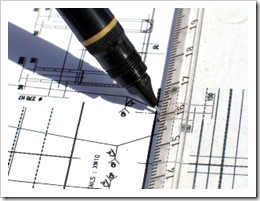
After you get familiar to AutoCAD interface and it’s navigation tools, now it’s time for you to learn how to use drawing tools. I know a lot of instructor showing the students how to use each drawing tools. But then a couple of weeks after finishing their training, the students struggle to remember how using them.
Drawing tools should be very easy. Each of the tools name describe what they do. Line tool will draw a line, rectangle tool will draw rectangle. Easy, right? What you have to understand is, every tool might have different way to be used. It’s difficult to remember all of the steps in each tool. That’s what command line is for (or you can use dynamic input).
Command line is just like a road sign, it will guide you so you don’t get lost. Try to activate a drawing tool, like a line.
Command: _line Specify first point:
Specify next point or [Undo]:
Specify next point or [Undo]:
Specify next point or [Close/Undo]:
After you activate the line tool, then AutoCAD will tell you what to do: specify first point. Define your point by clicking in the drawing area, then it will ask you again: specify next point. Just click any where in your drawing area, don’t worry about the size or precise coordinate yet.
Now let’s try for circle:
Command: ARC Specify start point of arc or [Center]: C
Specify center point of arc:
Specify start point of arc:
Specify end point of arc or [Angle/chord Length]:
After I activate circle, AutoCAD will tell me to specify a start point, and give an option: I can switch from specifying a start point to a center point. This time, I type the capital letter in the option, C, to switch to specify center point. Then AutoCAD ask me for center point, start point, then end point consecutively.
Follow command line, then you should be OK. Even for you who have used AutoCAD for years, you should be watching command line sometimes. Especially when you use a new version, try to find if there is any new option there.
Autocad tips : Getting Started

First of all, of course you have to be familiar with the interface. AutoCAD interface now is easier for new users. I know a lot of senior users complaint about ribbon and all, but I think for new users it easier to understand. Learn how you can access and activate drawing tools, modify tools, and any other tools. If you already familiar with Windows application, then this won’t take too long. AutoCAD is an Windows compliant, so should taste the same.
Now try to open any drawing, if you don’t have any start with a sample file. I always teach this first: navigation tools. Try to navigate through your drawing. Pan, zoom in, zoom out, and then zoom extend. Get familiar with navigation tools. Then it will be easier for you later when you start learn how to draw.
After that, create a new drawing using appropriate template. If you draw with metric units, don’t use imperial templates!
Sunday, 23 September 2012

 tuning wheel
 AD9's wheel
Most Expensive Car 2012
The current world’s most expensive car is the Maybach Exelero. The one-off custom built Maybach was revealed in May 2005 at the Tempodrom in Berlin. The built by Stola in Turin is a one-off vehicle designed to showcase the new high tech performance of the Exelero Tyre range from the leading tyre maker Fulda. These two companies have not teamed up for the first time because way back in 1938 Fulda showed its tyres on a Mayback SW 38 limousine. Now there are to produce the model in the series registered for on-road use. This New Exelero will be limited to just 10 pieces having the cost of $8 to $10million dollars.

Price: $8 million
Country of Origin: Germany
Engine: V12 twin turbo
0-60 mph: 4.4 seconds
Price: $8 million
Country of Origin: Germany
Engine: V12 twin turbo
0-60 mph: 4.4 seconds
Introduction to this blog
this blog is dedicated to one of the oldest branch of engineering , i.e , mechanical engineering . Here u can find almost every field information related to mechanical engineering like strength of materials , theory of machines , fluid mechanics and other interesting facts related to this branch.
Feel free to ask me anything from machine designing , automobiles as these are mine area of interests .
Here u can also get latest tips and tricks related to autocad , proE , catya , solidworks related softwares which are mainly based on machine designing .
And yes , u are free to share your thoughts with me ...
Subscribe to:
Posts (Atom)